Official Handbook · Getting Started
Get started with Shadowrocket Add a subscription and connect for the first time
Follow the five steps in order: prepare a server in Home, choose Global Routing, connect, then test a request. First establish a repeatable connection before changing advanced settings.
STEP 01 · Home → Add Server
Add a server or import a subscription
A subscription link, individual server details, and a QR code are different types of connection information. Identify what you have, then choose the matching option.
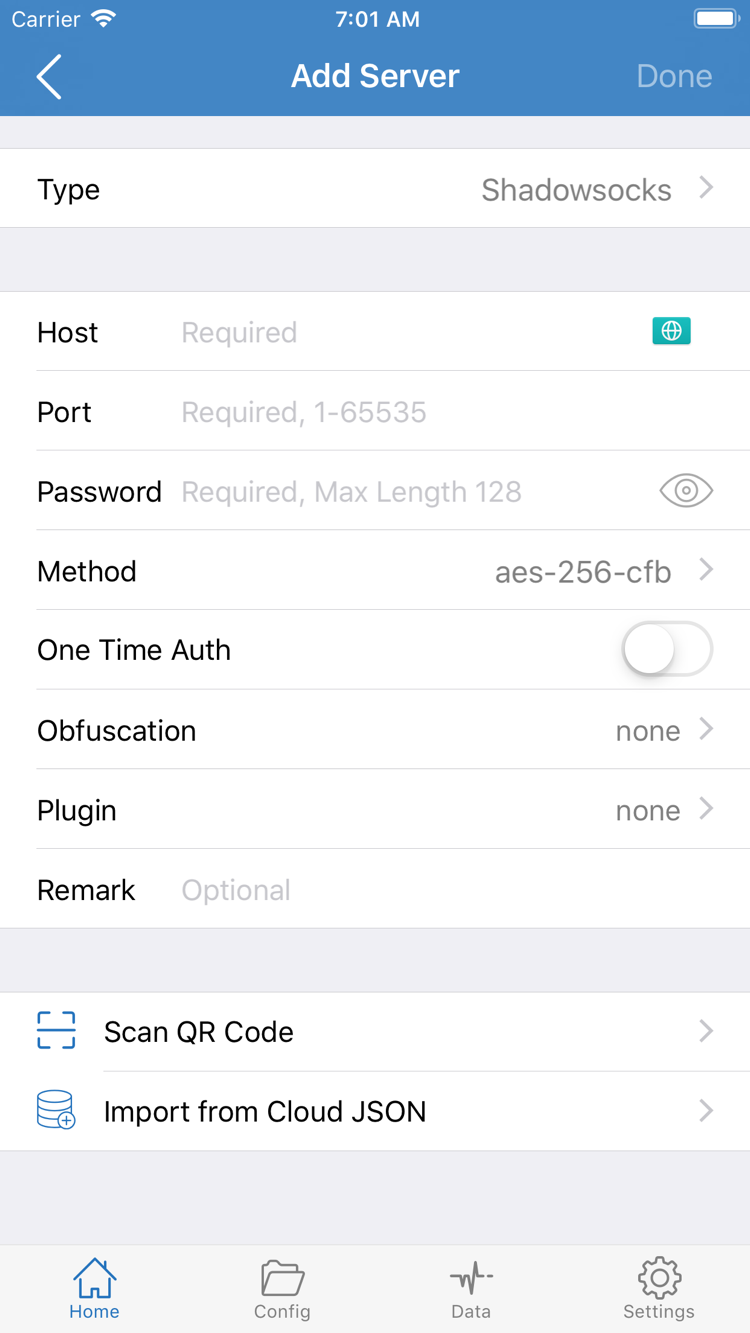
Open Shadowrocket and go to Home. Find Add Server in the server section and tap it. The Type you select determines which fields to fill in. Don't paste a subscription URL into the Host field for an individual server, and don't guess the protocol based on how the address looks. Check your provider's instructions first: do you have a subscription link that can be updated, or the complete connection details for one server? Both add an item to Home, but updates and verification work differently.
Have a subscription link? Choose Subscribe
In Add Server, tap Type and select Subscribe. Paste the full subscription link from your provider into URL. If there's a remarks field, enter a name that helps you identify its source. Check the beginning and end of the pasted link. Remove any chat text, spaces, or line breaks that aren't part of it, but don't delete query parameters—they may be required to identify your subscription.
Confirm and save, then return to Home. Wait for the subscription to load and check whether server entries appear in the group. Saving a subscription does not mean its servers have loaded successfully. If the group is empty or an error appears, check that the link is complete and still valid, and that your current network can reach it. Don't add the same link repeatedly. Keep one entry and refresh it as directed by your provider to avoid duplicate groups.
Have individual server details? Fill in the fields for the selected Type
If you have a server address, port, password, and protocol, select the actual protocol under Type, then fill in Host, Port, and the required authentication fields. The screenshot shows an add-server form with Password and Method, but fields vary by Type. For Shadowsocks, VMess, VLESS, Trojan, WireGuard, and other types, use the details provided by your service provider and the fields currently shown in the app. Don't copy fields from one type to another.
Check for extra spaces in the address, an incorrect port, and password capitalization. Carefully verify any additional transport or security settings too. If a field is unclear, ask your provider before saving. Guessing a value may make the entry look complete but still prevent a connection.
Have a QR code? Use Scan QR Code
If you have a server QR code, use Scan QR Code and allow camera access if prompted. After scanning, check the Type, address, and port before saving. A readable QR code only means its contents could be parsed; it does not prove that the server is currently available. Import from Cloud JSON is a separate import option, not a substitute for entering a standard subscription link. Use it only if you have the corresponding format and understand what it is for.
You're ready to move on when the server you plan to use appears in Home and you can open its details to check the source. Don't change DNS or other Settings yet. First choose how Global Routing should handle requests.
STEP 02 · Home → Global Routing
Choose Global Routing and check Config
Adding a server answers “which server will you use?” Global Routing answers “how will requests be handled?” Check both separately.
Return to Home and tap Global Routing. First, understand the three modes: Config, Proxy, and Direct. This setting won't fill in missing server details or make an expired subscription valid again. Note the current mode before switching so you can restore it after testing and avoid confusing a mode change with a server change.
Config: Apply rules from the active configuration file
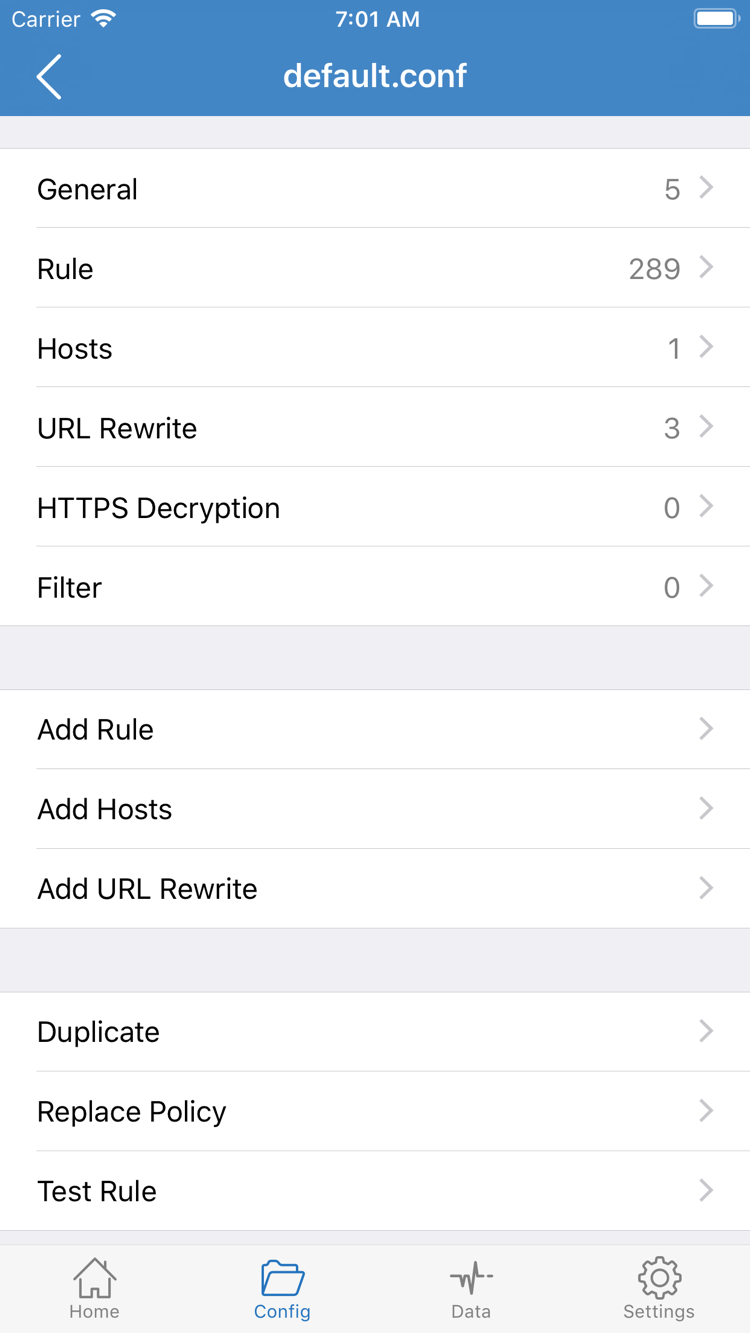
With Config selected, requests are handled according to the active configuration file. Open Config at the bottom and check which file is enabled, then review its Rule section. Rules can send different requests to policies such as PROXY, DIRECT, or REJECT, so different sites may follow different routes within the same connection. Seeing the VPN status doesn't mean every request is using the current server.
The official screenshot shows a configuration editor with General, Rule, Hosts, URL Rewrite, HTTPS Decryption, and Add Rule. Use it to identify these sections; you don't need to enable each one to get started. Keep your existing configuration structure, and don't change HTTPS Decryption just to test a connection. It's not part of this first-connection tutorial.
Proxy: Narrow the scope of your first test
If you don't have a rules file ready, or want to check whether the selected server can handle a request, you can temporarily choose Proxy for testing. Requests handled by Shadowrocket will use the proxy, making it easier to distinguish whether the server can connect from whether a particular rule matches. This doesn't guarantee success or promise a specific route for all device traffic. Confirm the result with the connection and request tests in the next step.
Direct: Not a way to verify a server
With Direct selected, relevant requests are handled directly. A webpage loading normally in this mode does not prove that the server you added can connect. Likewise, selecting a server while leaving Direct enabled cannot verify the server just because a webpage is accessible. If you're using Direct for comparison, restore your original mode afterward so you don't forget to switch back.
For rule-based routing, return to Config and check that the active file's policies suit your needs. You don't need to write a long rule list just to make your first connection; first check that the mode, file, and current server match your intent. For more about DNS, On Demand, and other settings, read the Settings Handbook. This page covers connecting, not full configuration management.
STEP 03 · Home → SERVER → Connection switch
Select a server and turn on the switch at the top
Select the server first, then connect. The first-time VPN configuration approval is a system step, separate from checking whether a subscription is valid.
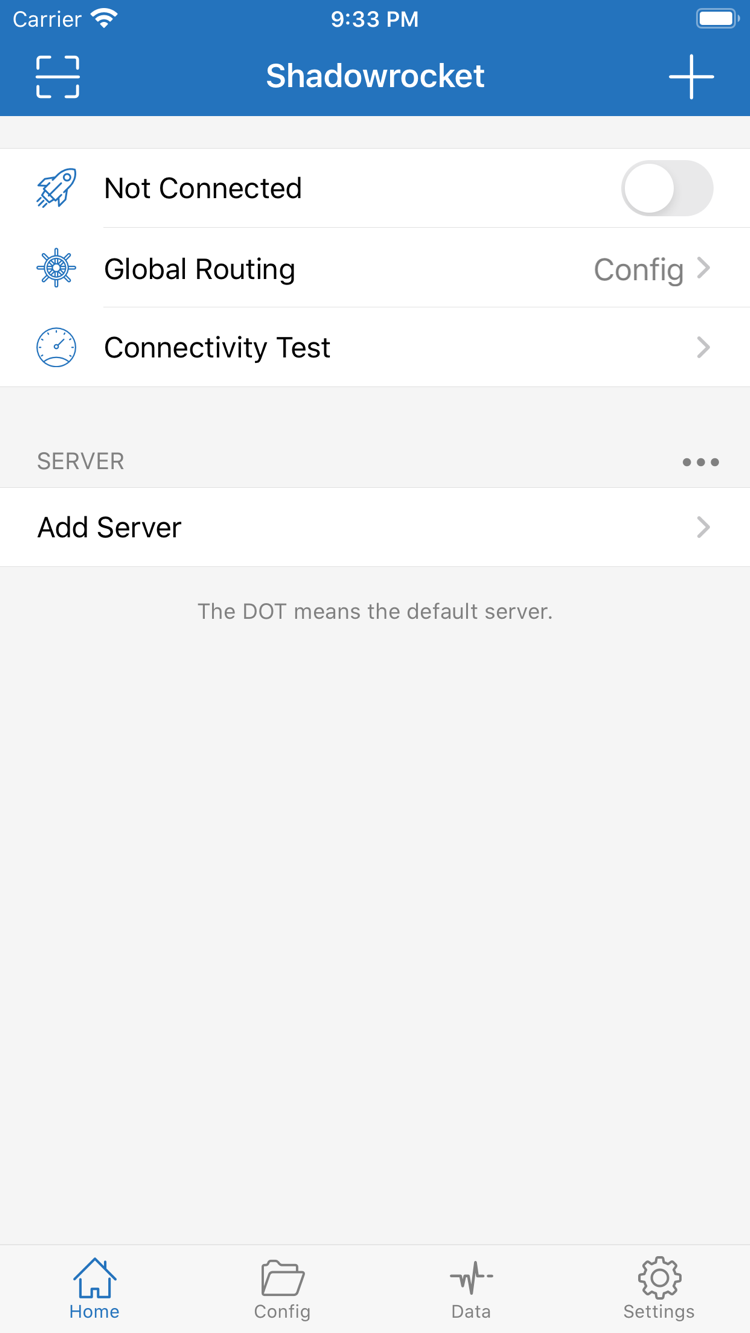
In the SERVER list in Home, find the entry you want to use and tap the dot next to it to make it the current selection. Opening a server's details to view its settings does not select it. Return to Home and make sure the selection indicator is beside the right entry. If the list has multiple subscription groups, check the source too so you don't select an identically named entry from an old subscription.
Check that Global Routing is still set to the mode you chose in the previous step, then turn on the switch at the top of Home. The official screenshot shows Not Connected to help you identify the switch when disconnected; it does not show your device's current state. After connecting, rely on the text in the app and the system status. Your screen doesn't need to match every detail in the screenshot.
Approve the VPN configuration the first time you connect
The first time you connect, the system may ask whether Shadowrocket can add a VPN configuration. Confirm the app name in the prompt and approve it as instructed. Your device may require its passcode or biometric authentication. This is system authentication—not a prompt for your service provider password. Approval lets the app create the required network configuration; it does not verify the server details or connection status.
If you previously denied approval, return to Home, try connecting again, and watch for the system prompt. If your device is managed by an organization or subject to restrictions, follow its management requirements. Don't delete unfamiliar system configurations as a troubleshooting experiment. After approval, return to the app and check whether the switch stays on. If it turns off again immediately, note any prompt and continue with the troubleshooting steps below.
After the status changes, keep everything else the same
After a connection is established, the system may show a VPN status indicator. Its appearance depends on the device and current screen. A connected status means the configuration is enabled; it doesn't prove that the remote server or every destination has been verified. Don't stop at the status indicator or immediately switch servers, networks, and modes. Keep the current setup, run Connectivity Test, then try an actual request.
On iPad, follow the same checks using the Home list, Global Routing, and the switch at the top; the layout depends on your device. At this point, note at least the current server, routing mode, and whether the switch stays on. With all three recorded, you can reproduce the same conditions if testing fails instead of starting over with the import step.
STEP 04 · Home → Connectivity Test
Cross-check Connectivity Test results against real requests
Check that the connection stays on, the test returns a result, and the actual destination loads. Don't rely on a single icon or number.
Keep the server, network, and Global Routing mode unchanged. In Home, tap Connectivity Test. Wait for the test to finish and note its result. If it fails, record the specific message rather than labeling every failure “can't connect.” The target, routing mode, and network conditions can all affect the result. With Config selected, consider which rule handles the test request; a single successful test doesn't prove that every request uses the proxy.
Next, open a browser and visit a page you know and are authorized to access. Refresh it or open a new page to avoid relying on cached content. Check that the page body and required resources continue to load, not just that the title appears. A successful test with a failing webpage is different from both failing. In the first case, check the destination, rule matching, and related resolution; if both fail, revisit the network, server, and connection details.
A latency result doesn't tell the whole story
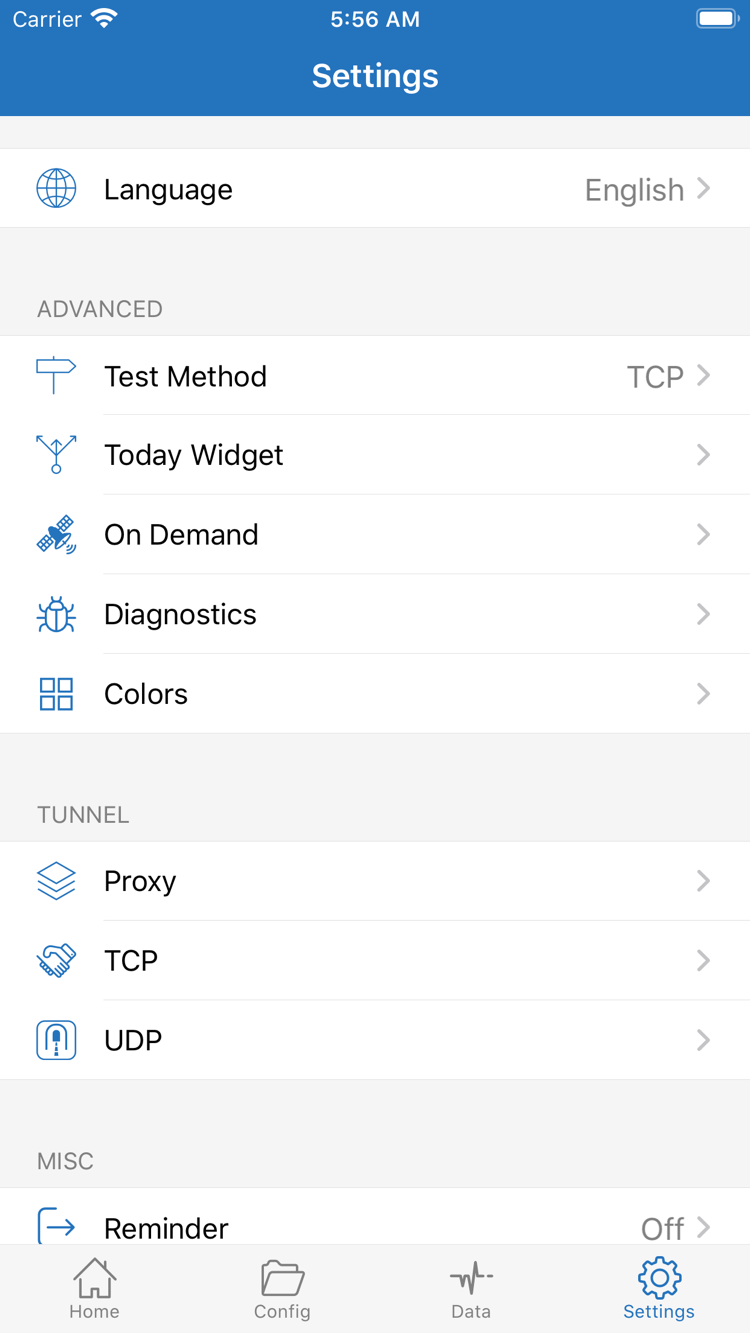
The test number in Home and the loading of an actual webpage are different measures. Test Method in Settings affects how the test works. A response to one probe doesn't prove that authentication, transport, and access to a destination all work. Conversely, a missing probe result doesn't mean every real request will fail. Check the test method, then compare Connectivity Test with a browser request. Don't switch the current server repeatedly just because one number is low.
For comparisons, change only one condition per test
To check whether the server is the issue, keep the network, destination, and routing mode the same; switch only to another server you already have and test again. To check whether a rule is involved, note the original settings, temporarily select Proxy, and repeat the same request, then restore Config. Don't change the server, DNS, network, and rules all at once. If the result changes, you won't know which change made the difference.
After testing, restore any temporary options to the settings you plan to use. One successful request only confirms that it worked under those conditions at that time; future requests may differ. If the connection status, Connectivity Test, and actual page all meet expectations, you're done getting started. If they don't agree, use the symptoms in the next section to narrow down the issue. There's no need to delete everything that imported successfully and start over.
STEP 05 · Settings → Test Method / On Demand / Diagnostics
Troubleshoot based on what failed
First identify where the failure occurred, then check Settings. For initial troubleshooting, you don't need to change every Proxy, TCP, and UDP option at once.
No entries after import? Check the input and loading status
Return to Home and check the import source. If a subscription group is empty, verify that the Subscribe URL is complete and still valid, and note any error shown while loading. If a manually added entry saves but won't connect, reopen its details and check the Type and every required field. Saving only means the app accepted the input format; it doesn't verify the provider's service status. Start by checking the information you already have, not unrelated settings.
The switch won't stay on? Check approval and system prompts
If the connection switch turns off immediately, confirm that you approved the system VPN configuration and note any message from the app or system. Then check that the right server is selected and all required details are present. If you changed several settings, restore the values you recorded instead of guessing. Device management restrictions and an unreachable server are different issues; use the prompts to tell them apart. Reinstalling the app repeatedly won't replace these checks and may make existing settings harder to track.
Connected, but the test fails? Check the method and current server
In Settings, find Test Method. Note the current method, then consider how it relates to the result you're seeing. Return to Home and repeat the test with the same target. If actual requests also fail, check the details from your provider, server status, and network conditions. You can compare with another server you already have, but seeing a number after changing the test method does not prove that all requests are working again.
Only some destinations fail? Check the route in Config
If the connection stays on and some pages load, first check Global Routing and the current Config. See whether the failing destination matches DIRECT, PROXY, or REJECT, and whether the expected configuration file is active. DNS and rules may both be involved, but don't replace the entire configuration for a single destination. Keep a copy of the original and change only one thing at a time when you understand why. For more about DNS and configuration, continue with the Settings Handbook.
Status changes during manual testing? Check On Demand
Check On Demand in Settings. If you previously set connection behavior based on network conditions, the connection may change unexpectedly during a manual test. Note the existing conditions. If you temporarily disable them to isolate an issue, restore the original settings after testing. Don't add multiple trigger rules before you understand the current ones. This tutorial focuses on verifying one deliberate manual connection; configure On Demand for everyday use after confirming the basic connection.
Need to investigate further? Use Diagnostics carefully
If the cause is still unclear, check Diagnostics in Settings and review the available diagnostic information alongside the time, destination, and symptoms. Keep records useful for reproducing the issue; you don't need to publish everything. Subscription URLs, authentication fields, server identifiers, and browsing records may contain sensitive information. Review and redact unnecessary details before sharing diagnostics. Understand options such as Proxy, TCP, and UDP before changing them; repeatedly flipping switches is not a reliable fix.
After troubleshooting, return to Connectivity Test and real-request testing and repeat the checks under the same conditions. Once the results are consistently as expected, restore your everyday Global Routing and On Demand settings. If the issue involves your subscription or server details, share your findings with your provider. If you just lost track of the steps, continue from the relevant section on this page—there's no need to buy the app again.
A server appears in Home and the current selection is clear; Global Routing matches your needs; the connection switch stays on; Connectivity Test and a real request have been cross-checked; temporary changes have been restored or recorded.
Continue to the Settings Handbook →